Introducing Slipstream for Claude — Manage Remote Devices with AI
Slipstream now integrates with Claude Desktop and Claude Code. List devices, execute commands, and manage your infrastructure through natural language — no SSH keys, no VPN, no context switching.
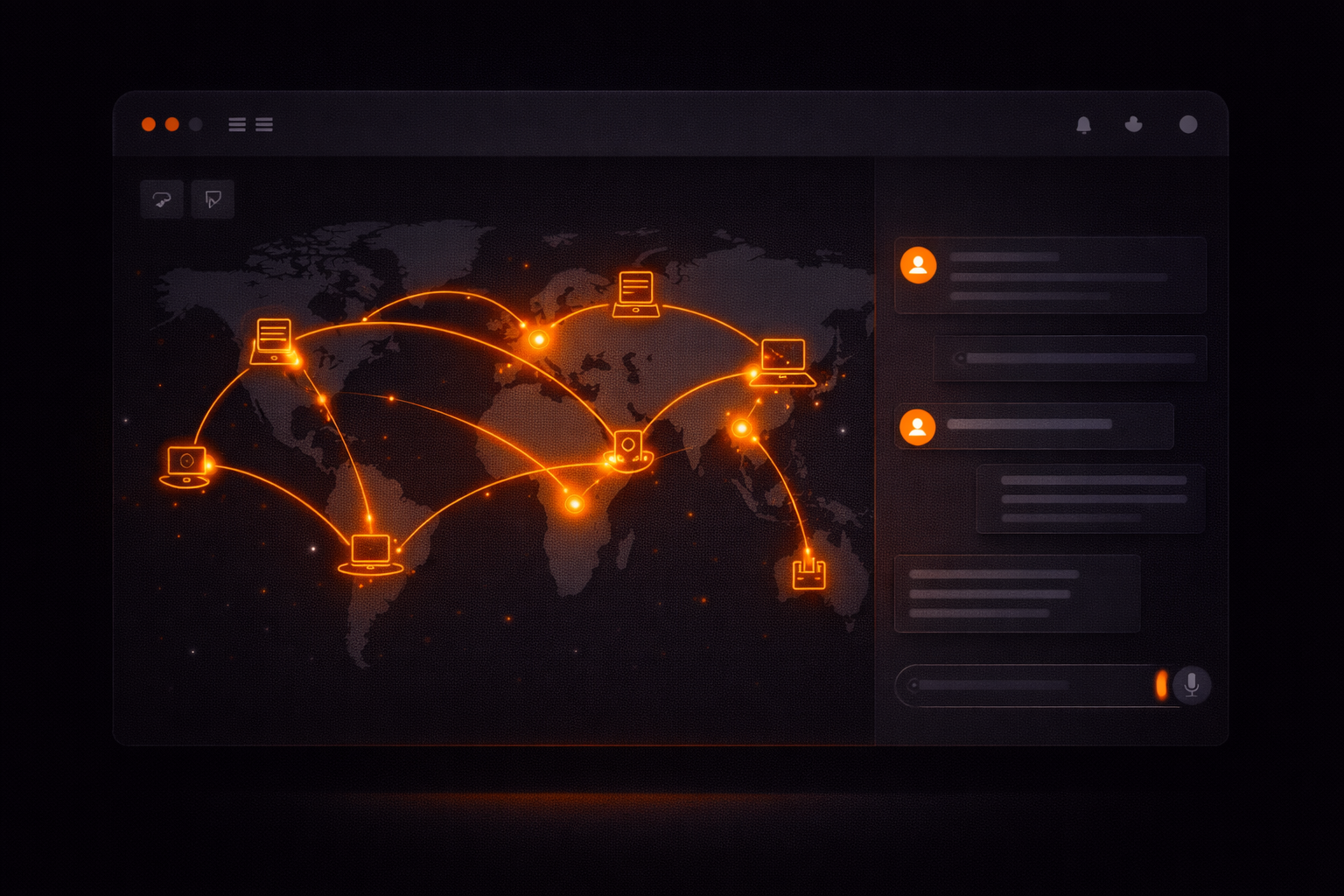
What if you could manage your servers the same way you talk to a colleague?
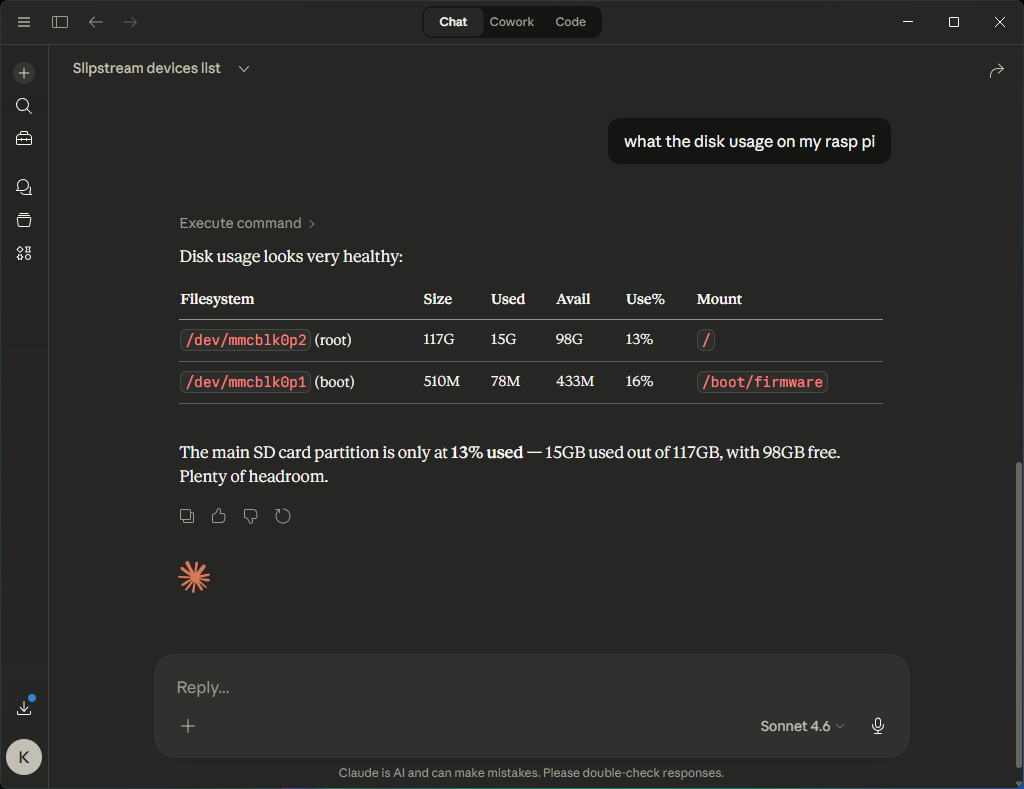
“Check if nginx is running on the production server.” “What’s the disk usage on my Raspberry Pi?” “Show me the last 50 lines of the error log on the staging box.”
Today we’re launching the Slipstream MCP integration for Claude. It lets you manage remote devices — run commands, check status, view logs — directly from Claude Desktop or Claude Code. No SSH keys. No VPN. No terminal windows. Just natural language.
The Problem
Every developer and IT admin knows the friction. You’re debugging an issue, and you need to check something on a remote machine. So you:
- Open a terminal
- SSH into the box (hope you remember the hostname)
- Run the command
- Copy the output
- Paste it back into your conversation with Claude
- Repeat
It’s death by context switching.
Every context switch slows you down. When you’re debugging production issues, that delay matters. It’s the difference between resolving a problem in five minutes and spending thirty chasing information across tools.
The information you need is on one screen. The AI helping you reason about it is on another. And you’re the human clipboard in between.
A Different Way
Slipstream removes that gap entirely.
Instead of jumping between tools, Claude can access your infrastructure directly — so the reasoning and the data live in the same place.
Install the Slipstream agent on any device — Windows, macOS, Linux, even a Raspberry Pi — and Claude can interact with it directly.
Here’s what it looks like in practice:
You: “List my devices”
Claude:
● [9] raspberrypi (linux/aarch64) — online [Production]
● [15] staging-server (linux/x86_64) — online
○ [10] ws1 (windows/x86_64) — offline
You: “Check the memory usage on the staging server”
Claude:
              total        used        free
Mem:          15Gi       8.2Gi       4.1Gi
Swap:         2.0Gi       0Bi       2.0Gi

[exit_code: 0, duration: 22ms, device: 15]
That’s it. Claude triggers the command on your remote device and shows you the result. No SSH. No copy-paste. The AI has direct access to the information it needs to help you.
Why This Changes How Teams Work
This is not just about convenience. It changes how debugging and operations happen.
Instead of manually gathering data and feeding it into an AI, the AI can access the system directly and help you reason in real time.
That means faster diagnosis, fewer mistakes, and less time spent switching between tools.
When Claude can check a log, verify a configuration, test a connection, and correlate the results — all in one conversation — you move from “let me go check” to “here’s what I found and here’s what I recommend.”
That shift compounds. A team that can diagnose and resolve issues in minutes instead of hours has a fundamentally different relationship with their infrastructure.
Security: Designed for Worst-Case Scenarios
Giving an AI the ability to trigger commands on your servers is powerful — and potentially dangerous. We designed this assuming worst-case scenarios, because giving an AI command access requires it.
- Permission-gated.
exec:commandis a separate permission that must be explicitly granted. It’s not enabled by default, even for admins. - Audit trail. Every command is logged with who ran it, on which device, what they ran, and what the output was.
- Rate limiting. 60 commands per minute per device. Enough for interactive use, not enough for abuse.
- Dangerous command detection. The MCP server flags destructive commands (
rm -rf,DROP TABLE,shutdown) with warnings before they execute. - Credential isolation. The agent strips its own authentication tokens from the command environment, so a
printenvcan’t leak credentials. - 30-second timeout. Commands can’t run forever. For long-running tasks, you background them explicitly.
Claude also has its own permission system — it asks you before calling any MCP tool. So there are two layers of confirmation before anything runs on your infrastructure.
Under the Hood
The system is simple:
- Slipstream Agent runs on your devices as a lightweight service. It maintains a secure connection to the cloud relay.
- Personal API Token — you create a
pat_token in your Slipstream dashboard. This authenticates the MCP server without sharing your login credentials. - MCP Server — an open-source server (github.com/keyqcloud/slipstream-mcp) that runs locally and connects Claude to the Slipstream API.
- Claude calls the MCP tools —
list_devices,execute_command,device_info,exec_history— and presents the results naturally in your conversation.
Commands execute on the remote device and results come back in milliseconds.
Getting Started
For Claude Desktop (Windows + macOS):
- Download the Desktop Extension
- Double-click to install
- Enter your API token when prompted
For Claude Code (CLI):
{
  "mcpServers": {
    "slipstream": {
      "command": "npx",
      "args": ["-y", "@keyqinc/slipstream-mcp"],
      "env": {
        "SLIPSTREAM_TOKEN": "pat_your_token"
      }
    }
  }
}
You’ll need at least one device with the Slipstream agent installed. The free tier covers one device with terminal access — enough to try this out. Pro adds file transfer and remote desktop, and raises the device limit.
What’s Next
This is just the beginning. We’re exploring:
- Proactive monitoring — Claude watches your devices and alerts you when something looks wrong.
- Multi-device orchestration — run the same command across your fleet in parallel.
- Workflow automation — chain commands together based on results.
The MCP server is open source and MIT licensed.
Try It
If you’re tired of jumping between terminals, dashboards, and AI tools just to debug a single issue, this changes that workflow completely.
Try Slipstream free and see what it feels like to manage your infrastructure directly through Claude.